Notifications
9 minutes, 57 seconds
-37 Views 0 Comments 0 Likes 0 Reviews
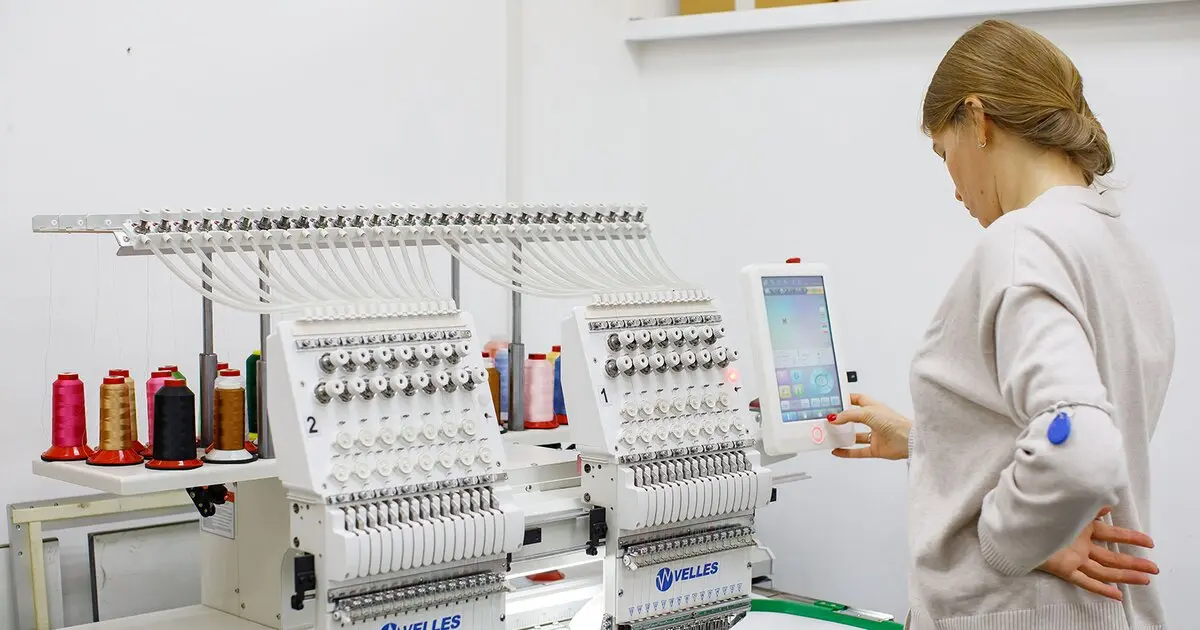
Ever stared at a gorgeous logo or photo and thought, "This would look amazing embroidered on a jacket"? Then you dive into your digitizing software, rush to Convert image to JAN Embroidery File, and hit stitch only to watch the design distort, colors bleed, or stitches pucker like they have a mind of their own. The culprit usually isn't the software or your Janome machine—it's the image you started with. Skipping the prep work before heading to JAN format turns what could be a crisp, professional piece into a frustrating redo. Getting your image ready first saves time, thread, and sanity while delivering that polished look every time.
JAN files serve as the editable master files in Janome's Digitizer MBX software (especially versions 4.5 and earlier), holding all the object data, stitch types, densities, and color info. Unlike final stitch files such as JEF that your machine reads directly, JAN keeps everything flexible so you can tweak designs without starting over. But that flexibility demands a solid foundation. A poorly prepared image leads to messy auto-digitizing, endless manual fixes, or worse—designs that look great on screen but fall apart under the needle. Proper prep ensures smoother conversion, cleaner stitches, and easier edits down the line.
Why Image Prep Matters More Than You Think
Your embroidery machine doesn't see pixels the way your monitor does. It translates shapes into thousands of precise needle drops, so every blurry edge or muddy color in the source image creates problems. Low-contrast photos force the software to guess stitch paths, resulting in jagged outlines or uneven fills. Too many colors overwhelm the digitizing engine, leading to thread changes that slow production or create weak spots. Even the file format of your starting image plays a role—compressed JPEG artifacts can sneak in and mess up edge detection.
Think of image preparation as laying a strong foundation for a house. Rush it, and the whole structure wobbles. Take the time upfront, and your JAN file becomes a reliable master you can revisit for tweaks, resizes, or color swaps without losing quality. This step separates hobby-level results from pieces that look custom-made.
Start with the Right Image Basics
Grab the highest resolution version you can find. Aim for at least 300 DPI if you're working from scans or photos, though vector files offer even better scalability. Vectors eliminate pixelation entirely, making them ideal for logos or simple graphics that need resizing later. If you're stuck with a raster image, avoid enlarging it beyond its original size—upsampling adds blur that digitizing software struggles to interpret.
Cleanliness counts big here. Zoom in and hunt for stray pixels, rough edges, or background noise. Remove anything that doesn't belong in the final design. A cluttered image forces extra stitch objects, increases file complexity, and raises the risk of thread breaks during stitching. Use basic editing tools to erase distractions so only the essential elements remain.
Simplify Colors Early and Often
Embroidery thrives on limited palettes. While your photo might boast fifty shades, most designs shine with six to ten colors max. Reduce the color count before importing into your digitizing program. Merge similar tones, eliminate gradients where possible, and create clear separations between elements. High contrast helps the software detect edges accurately, leading to sharper satin stitches and smoother fills.
Pay special attention to outlines. Thick, defined borders translate beautifully into satin stitches, while thin or faint lines often convert to running stitches that look weak. Boost contrast on key edges if needed. For photos or realistic images, consider posterizing or applying a threshold filter to turn subtle shades into distinct blocks that digitize cleanly.
Choose the Smart File Format for Import
PNG files win for transparency and lossless quality—perfect when you need clean edges without compression artifacts. JPEG works fine for photos but introduces slight degradation, so reserve it for sources that already have minor compression. Avoid formats like GIF that limit colors or add dithering patterns. If your image includes transparency, make sure it stays that way during prep so the software doesn't fill in unwanted areas.
Crop tightly around your subject. Extra empty space bloats the design area, wastes hoop space, and can throw off centering when you load onto fabric. Center the main element and leave balanced margins for underlay or pull compensation stitches.
Tackle Specific Challenges by Design Type
Logos and text demand razor-sharp edges. Use vector versions whenever available, or trace bitmaps to create smooth paths. Letters with thin serifs or small counters need extra care—enlarge problem areas temporarily during prep or thicken strokes slightly to prevent stitch gaps. For filled shapes, ensure no tiny holes or islands sneak in; merge them to avoid unnecessary color stops.
Photographic or artistic images require a different approach. Convert to line art or simplified zones first. Decide early which areas get satin, fill, or running stitches. High-detail photos often benefit from manual digitizing rather than full auto, but good prep still cuts manual work in half. Reduce noise, sharpen key details, and group similar tones into larger blocks.
Final Checks Before Hitting Convert
Run through a quick checklist once your image looks ready. Does it have clear contrast? Limited colors? No artifacts or noise? Proper size and orientation? Transparent background if needed? Once everything checks out, import into your Janome software. Many programs offer auto-digitizing wizards, but always review the results and optimize stitch sequence, underlay, and density manually for best performance.
Test on scrap fabric early. Even the best prep sometimes reveals surprises once stitches hit real material. Adjust compensation for stretchy fabrics or add extra underlay for thick ones. These tweaks happen easily when your base image gives the software accurate data to work from.
Common Mistakes to Sidestep
Skipping cleanup ranks as the top offender. People import messy photos expecting magic, then spend hours fixing what prep could have prevented. Another pitfall involves over-relying on auto-digitize without reviewing. The tool guesses well on simple designs but struggles with complexity—always inspect and refine. Ignoring resolution leads to blurry results, while using low-quality source images guarantees subpar output no matter how much you tweak later.
Wrap It Up with Confidence
Preparing your image isn't glamorous, but it delivers the biggest bang for your effort. A clean, high-contrast, simplified source turns the conversion to JAN format into a smooth process instead of a battle. You end up with an editable master file that stitches beautifully, edits easily, and scales reliably for future projects. Next time you spot a design worth embroidering, resist the urge to jump straight to conversion. Spend those extra minutes on prep, and watch your Janome machine produce crisp, professional results that make every project feel like a win.
Great embroidery starts long before the needle drops. Treat your image prep as the foundation of quality stitching, and you'll spend less time fixing and more time creating. Grab that photo or logo, give it the attention it deserves, and turn it into a JAN file ready to shine on fabric. Your future stitches will thank you.
Embroidery Digitizing Digitizing Buddy Convert image to JAN Embroidery File


We believe in the power of connections. Our platform is more than just a social networking site; it's a vibrant community where individuals from diverse backgrounds come together to share, connect, and thrive.
We are dedicated to fostering creativity, building strong communities, and raising awareness on a global scale.


Share this page with your family and friends.